Outlook - Retrieve Old Emails From Microsoft Exchange Server:
About:
This document explains how to find and retrieve old emails in Microsoft Outlook Classic from an Exchange Server, including checking and adjusting Cached Exchange Mode to retain older messages locally.
Only works for Outlook Classic!
What is a Microsoft Exchange Server?
Microsoft Exchange Server is a mail server that stores emails centrally.
Cached Exchange Mode in Outlook stores a local copy of your mailbox to allow offline access and improve performance. Adjusting it ensures older emails remain accessible on your computer.
The Cache Exchange mode is a feature in Outlook that stores a copy of your Exchange mailbox on your computer. This can be helpful if you want to access your emails offline or if you want to improve performance.
However, the Cache Exchange mode can also prevent you from seeing your most recent emails. To check if this is the case, go to the “File” tab and click on “Account Settings.”
Then, double-click on your Exchange account to open the “Change Account” window or select your account name and click “Change…”
Outlook Classic - Retrieve Old Emails:
1, Open Microsoft Outlook and click the File tab. Select Settings and Account.
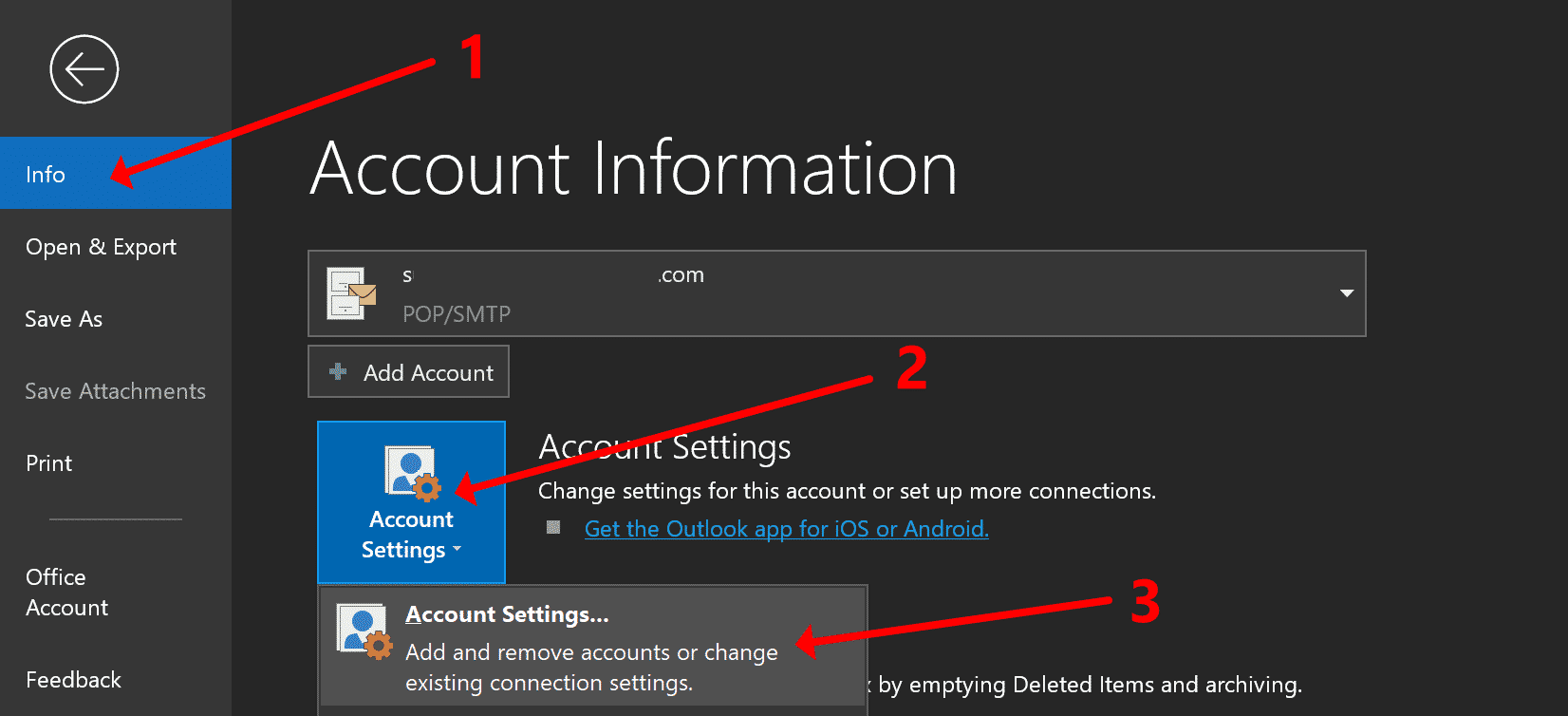
3, Find the Change Account window and click it.
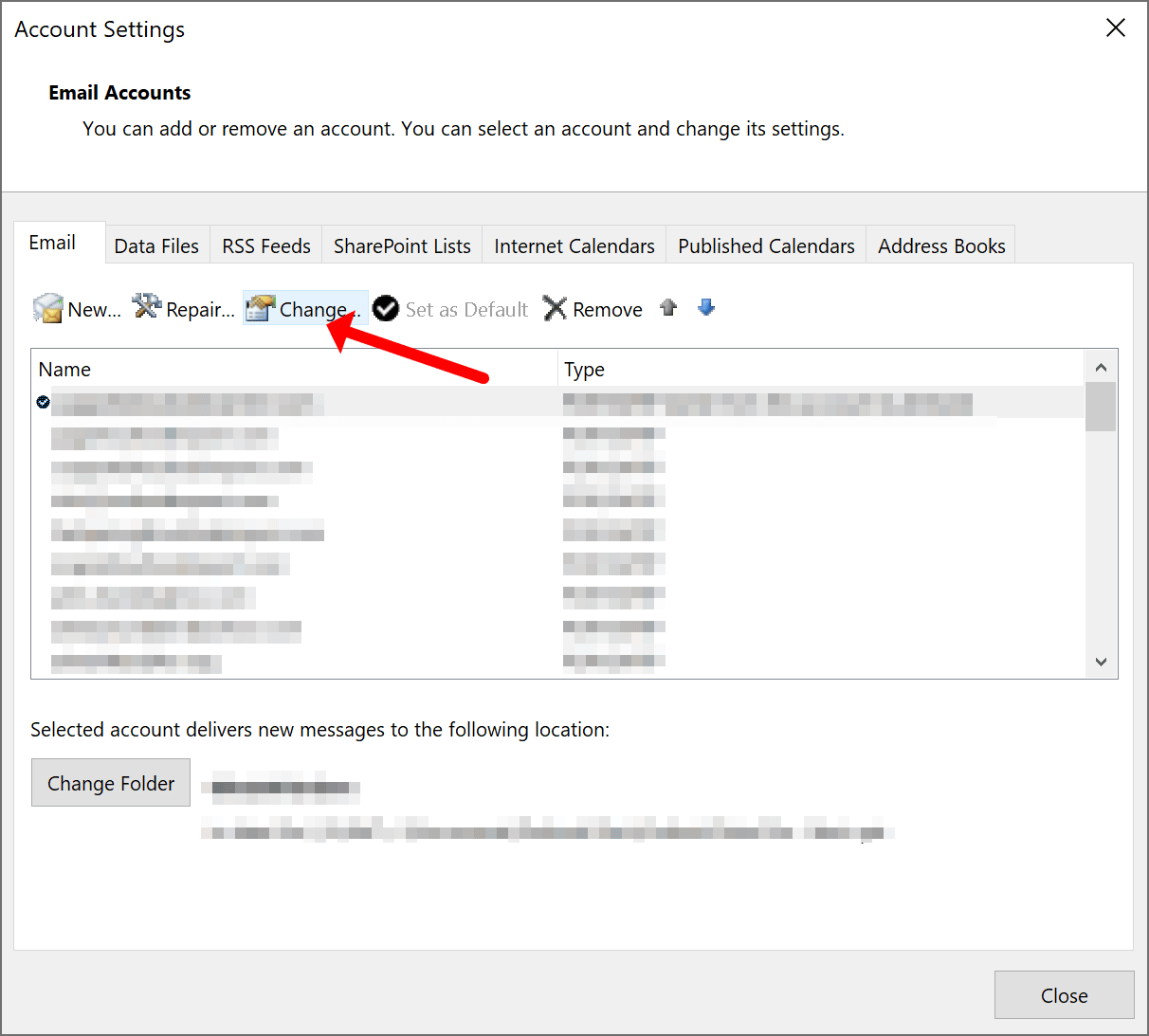
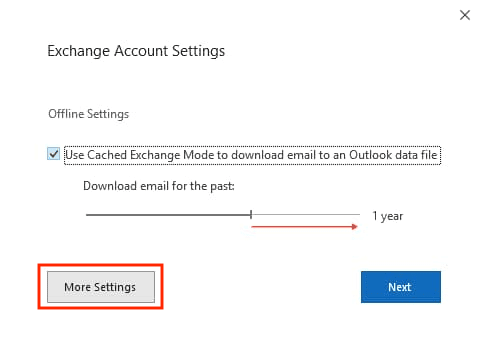
4, Click the More Settings tab and then click Advanced. This opens the Advanced Find window.
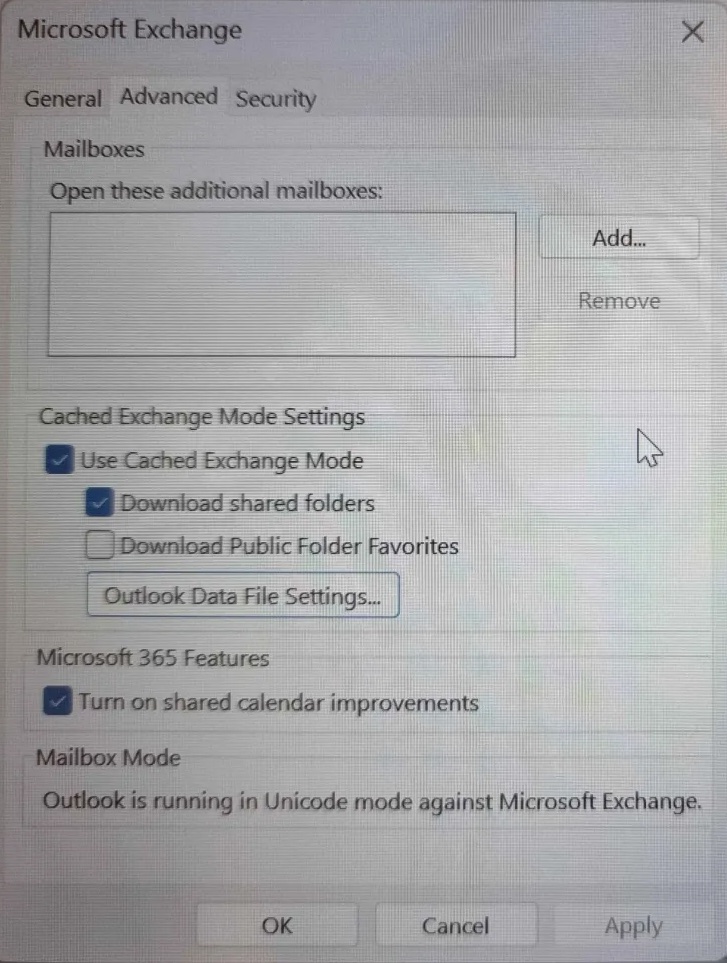
5, Search for emails using criteria such as date, sender, recipient, or subject.
6, Once found, move emails to your Inbox or another folder for storage.
- For Exchange accounts, you can modify the parameters for Cached Exchange Mode, which are only available in that case. Outlook clients on Windows default retain emails on a computer for one year using local storage.
- After that, local Outlook client storage is cleared of previous messages. Slide the dial to the right from 1 year to All. Then follow the on-screen instructions to finish configuring and rebooting Outlook, after which the changes should take effect.
- After that, your old emails should not be deleted from your computer for the new set time.
And you are done 😄